
Paycor Mobile
Paycor, Inc.Business
4.411.35K Reviews
- Version
- 6.3.9
- Installs
- 1.00M
- Age Rating
- Everyone
Screenshots
Our Review of Paycor Mobile
 Analysis by Appyee
Paycor Mobile is the kind of business app I would judge less by flashy extras and more by how calmly it handles ordinary employee tasks. It is designed for employees of Paycor’s client organizations, so it is not a general payroll tool that anyone can open and use independently. That distinction matters from the first screen: your employer needs to use Paycor services, and your account experience depends on how that organization has configured the platform.
After spending time with it, I see a practical workplace companion rather than a complete replacement for every conversation with a manager or payroll team. It puts employee information and work-related actions into a phone-friendly setting, which is useful when I am away from a desk. At the same time, the app’s value is closely tied to the features enabled for a particular employer. I would recommend it to a Paycor employee who wants quicker access to workplace information, but I would not suggest downloading it as a standalone solution if the employer does not use Paycor.
How Paycor Mobile feels to use day to day
I find Paycor Mobile easiest to judge by the small moments when I need a workplace detail but do not have a computer nearby. This section looks at how its phone-first approach fits into ordinary routines, including the value of learning where things are before a deadline appears. From there, the review turns to whether that convenience continues to earn a place on the phone over time.
Readability and navigation when I am checking something quickly
The strongest part of a mobile employee app is usually its ability to reduce small points of friction. I do not want to open a laptop just to check a work detail during a commute, review a notification, or deal with an administrative task before the day starts. Paycor Mobile is built around that kind of short session. I found the phone format more convenient than navigating an employer portal through a mobile browser, especially when I already know what I need to check.
The experience is easiest when I approach it with a specific purpose. I would open it to review a workplace item, look for an available employee action, or check information that I would otherwise search for in an email or desktop portal. That focused workflow is more comfortable than treating the app as a place to browse. It feels like a front door to employee services, not a full office system.
Readability depends on the phone, display settings, and the amount of information an employer makes available. On a modern screen, text and controls are generally easier to handle than a crowded desktop page squeezed into a browser window. Still, users who need very large text should test the screens they use most. Enlarging system text can improve comfort, but it may also make dense pages require more scrolling or cause some layouts to feel less balanced.
I also recommend taking a moment to learn the app’s navigation instead of relying on memory from a desktop portal. Mobile menus often place familiar workplace functions in a different order, and an employee who only opens the app during a stressful payroll or scheduling moment may lose time searching. My practical tip is to explore the main areas during a quiet moment, then keep the app available for the tasks you actually perform. That small preparation makes occasional use much less frustrating.
Paycor Mobile is not equally useful for every employee account. The employer’s setup determines what appears, so two people familiar with Paycor may see different practical value from the same app. I would avoid assuming that a missing option is a navigation mistake. If an expected workplace function is not visible, the sensible next step is to ask the organization’s administrator or HR contact rather than repeatedly reinstalling the app.
Motor and sensory considerations in real workplace conditions
Using a phone can be easier than using a mouse and keyboard for some people, but harder for others. A touchscreen allows direct access without a desk, which helps when I am moving between work areas or using a phone one-handed. The trade-off is that small touch targets, scrolling, and repeated taps can be tiring for anyone with limited dexterity, tremors, hand pain, or difficulty maintaining a steady grip.
For users with motor limitations, I would approach Paycor Mobile as a task-by-task tool rather than assuming every action will feel equally comfortable. Short checks are likely to be more manageable than a long form or a sequence of repeated confirmations. A phone stand, a larger device, or built-in operating-system interaction tools may make a meaningful difference. Those adjustments are not special tricks for this app; they are practical ways to reduce the physical effort of touchscreen work.
People with visual sensitivities may also want to control the environment around the app. A bright screen in a dark room can be uncomfortable, while glare in a workplace can make text harder to distinguish. I would try the phone’s display settings, increase contrast where the operating system supports it, and avoid making important decisions while rushing through a screen that is difficult to read. The app is most useful when the user can pause and verify information rather than tapping through by guesswork.
For screen-reader users, the important question is how each current screen is announced and whether controls have clear labels. I would not treat a general mobile interface as proof that every element works equally well with assistive technology. The most reliable approach is to test the exact workflow needed by the employee, especially if it involves submitting information or confirming a sensitive workplace detail. If one part is difficult, the employer’s support channel may offer an alternative route or explain which version of the process is intended.
Hearing-related needs are less central to the basic idea of a workplace information app, but notifications can still matter. I prefer not to depend on sound alone for anything important. Visual checking inside the app and the phone’s notification settings are safer habits, particularly in noisy workplaces, shared offices, or environments where the phone must remain silent. That is a useful distinction: the app can support mobile access, but it should not become the only place an employee looks for an urgent instruction from a manager.
Situational access away from a desk
The most convincing use case for me is the employee who does not spend the whole day at a computer. Imagine finishing a shift, remembering that a workplace detail needs checking, and having only a phone available. A mobile app is more realistic in that moment than opening a desktop portal on a small browser screen. The same applies to employees who move between locations, work on a shop floor, or share a computer rather than having one assigned to them.
There is also a quieter benefit for people who need to manage work information privately. A phone can be more convenient than asking someone nearby to help access an employee portal. However, privacy cuts both ways. I would avoid checking sensitive employment information on a public screen, use the device’s normal security features, and be careful with notifications that could reveal details while the phone is visible to other people.
Connectivity and attention are practical limitations. A mobile workflow is helpful when the device can reach the service and the user has enough time to read what is on screen. It is a poor setting for making a rushed decision while walking, driving, handling equipment, or working in a place where phones are restricted. I would treat the app as a convenience for appropriate moments, not as permission to interrupt safety procedures.
Employees who work irregular hours may appreciate being able to handle a task outside a traditional office routine, but they may also need clearer expectations from their employer. An app cannot decide whether a particular action should be completed immediately, during paid time, or through a manager. That is where Paycor Mobile differs from a personal productivity app: workplace rules still govern how and when it should be used.
Where the experience can still create barriers
The biggest barrier is account context. Paycor Mobile is specifically for employees of Paycor clients, so an interested user cannot evaluate it properly without the right organizational connection. Someone expecting a universal payroll app may install it and find that the experience does not match that expectation. I would skip it if my employer does not use Paycor or has directed staff to another system.
The second barrier is variation between organizations. The app may be present on the phone, but the practical usefulness depends on what the employer has made available and how internal processes are managed. This can make troubleshooting confusing. A user may blame the app for an unavailable action when the real issue is account configuration, workplace policy, or an internal approval step. Keeping those possibilities separate makes support conversations much more productive.
Another limitation is that mobile convenience can encourage overconfidence. A compact screen makes it easy to complete a quick check, but it is not always the best place to interpret complicated employment information. If a figure, status, or instruction seems unclear, I would compare it with the organization’s normal communication and contact the appropriate workplace support person. The app should shorten access, not replace judgment.
I also would not choose it as a general business-management platform. Managers and administrators may need broader tools, reporting, or desktop workflows that are outside an employee-focused mobile experience. Likewise, an employee who wants a personal budgeting app, an independent time tracker, or a universal document organizer should look elsewhere. Paycor Mobile makes sense because it connects to an employer relationship; outside that relationship, its purpose becomes very limited.
What the numbers say about its place in the market
Paycor, Inc. has maintained this business app since its release on August 29, 2012. The current version is 6.2.9, and it supports devices running Android 7.0 or later. That broad operating-system reach is helpful for organizations with mixed device ages, although users on older phones may still experience more cramped screens or slower general performance than people using newer hardware.
It is free to download, carries an Everyone age rating, and has passed the one-million-install mark. The app holds an average rating of 3.8 from roughly thirty-four thousand ratings, alongside about eleven thousand written reviews. I read those figures as evidence of a widely used workplace tool with a mixed but not disastrous reception. A business app can receive uneven feedback for reasons beyond its interface, including employer configuration, login problems, and expectations about features that may not be enabled for every account.
Compared with a normal mobile browser, the dedicated app should be more convenient for repeated employee access because it keeps the workplace service close at hand. Compared with a broad human-resources suite, however, the experience is narrower from an individual employee’s perspective. A larger HR platform may offer more connected services in one place, while Paycor Mobile’s advantage is the direct, familiar route into the Paycor environment used by the employee’s organization.
Small habits that make it more usable
My first recommendation is to set up the app when you are not under deadline pressure. Confirm that the correct employer account is connected, inspect the available areas, and learn where the information you check most often is located. This is especially valuable for employees who use assistive settings or need extra time to move through touch controls.
Second, separate app problems from workplace questions. If a screen loads but an expected option is absent, note exactly what you can see and ask the employer’s Paycor contact whether that function is enabled for your role. If the app itself is not opening or behaving normally, record the device and operating-system context before seeking help. That gives support something more useful than a vague report that “payroll is missing.”
Third, use the phone as a supplement to a reliable personal routine. I would not depend on a notification as the sole reminder for an important deadline, and I would not assume that a mobile confirmation replaces any required workplace record. Checking the app, understanding the status shown, and keeping the relevant employer instructions nearby is a safer workflow than tapping once and moving on.
Finally, make accessibility part of the test rather than an afterthought. Try the exact task with the text size, screen reader, contrast setting, or input method you normally use. A feature can be technically present yet still be impractical if its labels are unclear, its controls are tiring, or its content requires too much visual scanning. Testing one real task tells you more than judging the app from its icon or store summary.
My inclusive verdict
I see Paycor Mobile as a useful access point for employees whose organizations already rely on Paycor. Its main strength is situational: it brings workplace information and employee actions closer to people who may not have a dedicated desk or convenient desktop access. The free download, Everyone rating, long availability, and support for older Android versions make it approachable for a broad range of employees.
Its inclusive value is more practical than absolute. A phone can reduce barriers for someone who needs remote access, a private moment, or a simpler alternative to a desktop browser. It can also introduce barriers through touch interaction, dense information, account variation, and dependence on employer configuration. I would judge it by the specific task I need to complete, not by assuming that every employee will have the same experience.
My recommendation is straightforward: if your employer uses Paycor and you regularly need employee information away from a computer, Paycor Mobile is worth trying. Give yourself time to adjust display and interaction settings, learn the navigation, and identify the right support contact. If you need a fully independent payroll tool, advanced business administration, or guaranteed ease with every assistive setup, this is probably not the right choice on its own. For the intended audience, though, it can be a sensible everyday bridge between an employer’s Paycor system and the realities of working from a phone.
Privacy and Permissions
See what permissions an app requests and how it handles your data.
- Device & app history
- read sensitive log data
- Identity
- find accounts on the device
- Contacts
- find accounts on the device, read your contacts
- Location
- approximate location (network-based), precise location (GPS and network-based)
- Photos/Media/Files
- read the contents of your USB storage, modify or delete the contents of your USB storage
- Storage
- read the contents of your USB storage, modify or delete the contents of your USB storage
- Camera
- take pictures and videos
- Wi-Fi connection information
- view Wi-Fi connections
- Other
- view network connections, full network access, prevent device from sleeping
Verdict
Strengths of Paycor Mobile
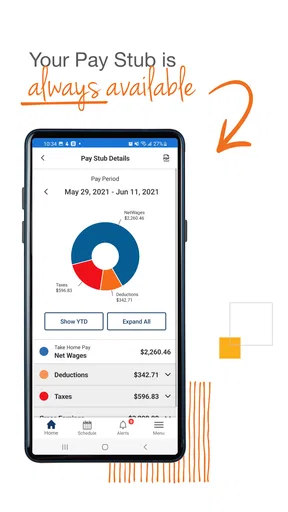
- Quick access to pay stubs, tax documents, and payroll details
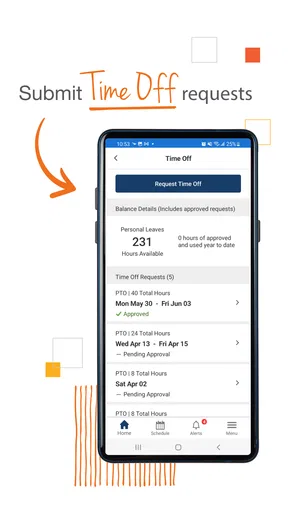
- Employees can request time off directly from their phones
- Push notifications help track schedule and workplace updates
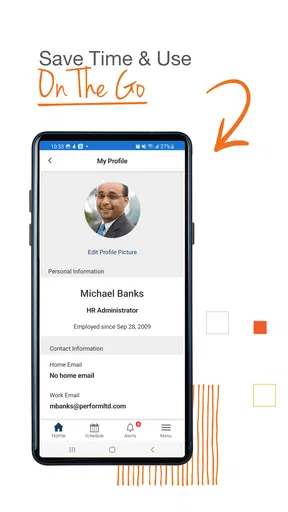
- Useful self-service tools reduce routine HR questions
- Supports biometric login on compatible devices for faster access
Limitations of Paycor Mobile
- Some features depend on the employer’s Paycor subscription
- Initial setup may require an invitation or company-provided credentials
- Performance can vary when workplace systems are busy
- Certain HR tasks may still require the desktop web version
- Users may need to contact their employer for account or data issues
Similar Picks in This Category
View All
LinkedIn: Community & Network
LinkedIn3.8

Zoom Workplace
zoom.com4.1

Microsoft Teams
Microsoft Corporation4.6

Meta Business Suite
Meta Platforms, Inc.4.6

Webex Meetings
Cisco Systems, Inc.4.5

TeamViewer Remote Control
TeamViewer4.4
Frequently Asked Questions
What is Paycor Mobile used for?
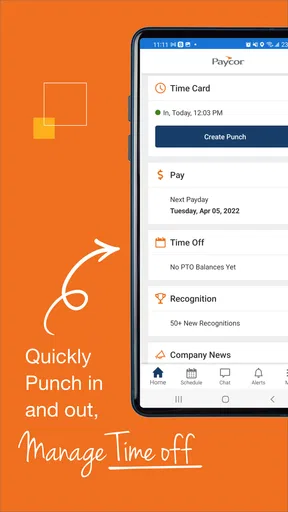
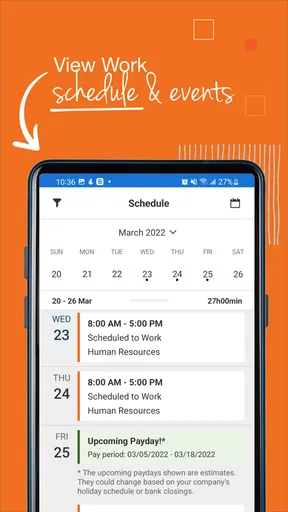
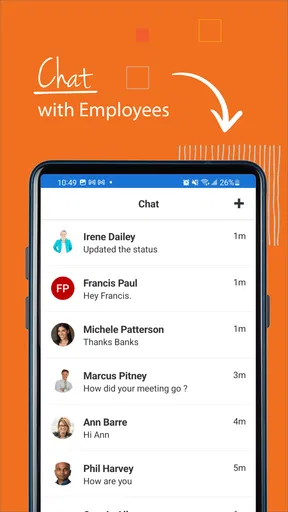
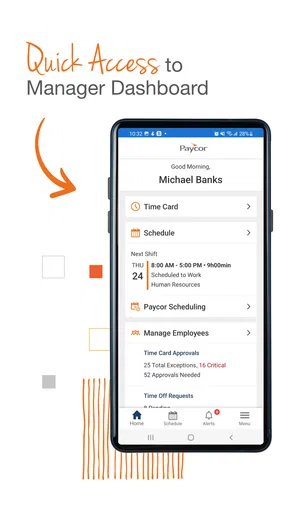
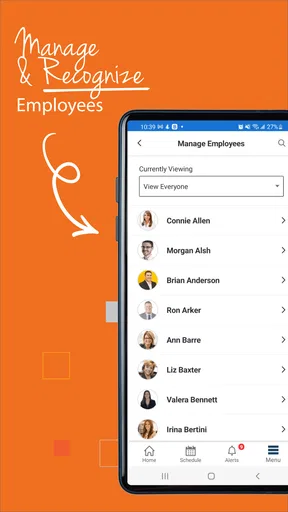
Paycor Mobile is a workforce management app designed for employees and managers whose organizations use Paycor. Depending on the employer’s setup, it can provide access to pay statements, tax documents, schedules, time tracking, time-off requests, benefits information, company announcements, and other HR tools. The exact features available may vary by company role and subscription.
How do I log in to Paycor Mobile?
To use Paycor Mobile, you generally need an active Paycor account connected to your employer. Open the app and enter the same credentials used for Paycor’s employee portal, then complete any required security verification. If you have forgotten your password, cannot remember your username, or have not received an invitation, use the recovery options or contact your company’s HR or payroll administrator.
Can I view my paycheck and tax documents in the app?
In most cases, Paycor Mobile allows eligible employees to review paycheck details, earnings, deductions, direct-deposit information, and available tax documents. However, access depends on how your employer configured Paycor and whether the relevant payroll features are enabled. The app is useful for checking recent payment information, but official document availability may follow your employer’s payroll schedule.
Can I clock in, request time off, or manage my work schedule with Paycor Mobile?
Paycor Mobile may support clocking in and out, viewing schedules, submitting timesheets, requesting time off, and checking attendance information. These tools are not necessarily available to every user because they depend on your employer’s Paycor plan, workplace policies, and assigned permissions. If a feature is missing or shows incorrect information, your manager or HR department usually needs to make the adjustment.
Is Paycor Mobile free and is my personal information secure?
The Paycor Mobile app is generally free for employees to download, but access requires an employer account and is tied to an organization using Paycor services. Because the app handles sensitive payroll and HR information, users should install it only from the official Google Play Store or Apple App Store, keep the app updated, use a strong password, and avoid signing in on shared or unsecured devices.
